161
Hi everyone,
Have you ever tried to generate an image in Copilot Chat and felt the result was close but not quite what you were hoping for? That came up recently in a conversation with Ian Robbins when he shared some of the friction he ran into while creating visuals for a project. His experience immediately reminded me of my own early attempts. I had hit the same wall until I started experimenting with the Create feature inside Copilot Chat, which led to a much more consistent way to get the images I actually needed.
Ian and I talked through what he was seeing. He walked me through how he had used Copilot to help shape content for his pooled volume incentive program white paper and how the image generation step was the piece that felt less polished.
That opened the door to a helpful discussion about how Copilot handles images in two different ways and why understanding the difference makes such a big impact.
Copilot Chat is built for exploration
Copilot Chat treats image creation as an open conversation. It is flexible and great for talking through ideas, drafting early versions, and playing with concepts. It does not automatically apply visual structure, layout guidance, or templates.
This makes Chat perfect for:
- Brainstorming visual ideas
- Trying multiple directions quickly
- Refining the description of what you want
- Creating early rough images that help you think
This is the same stage where Ian described refining language and shaping the concepts that would eventually become part of his white paper. If you are still figuring out what you want, Chat is the best place to start.
Create is built for production ready images
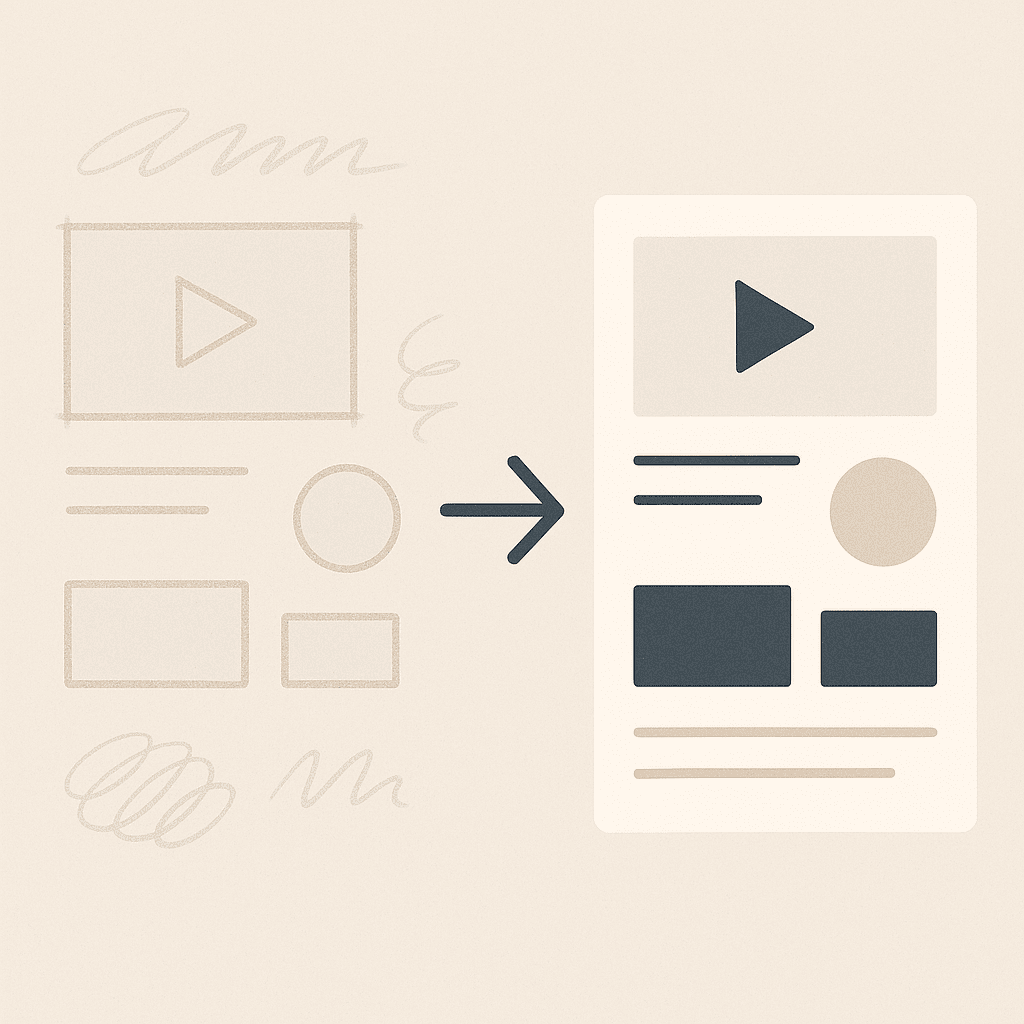
Once you know what you want, the Create experience inside Copilot Chat steps in to help you turn that idea into a polished visual. It uses the same underlying image model as Chat, but the experience is designed with added structure. Create applies templates, design constraints, and layout guidance. These help ensure the output looks balanced and clean.
Create is best for:
- Finished graphics for presentations
- Polished visuals for documentation
- Banner or header images
- Images that need alignment, spacing, and optical clarity
This is where I started achieving much better outcomes in my own workflow. Once I moved into Create with a refined prompt, the images became consistently usable without extra work.
How You Can Use Both Together
Here is the process I use, and it is the same one I talked through with Ian.
1. Begin with Copilot Chat
Use Chat to think. Describe what you need in plain language. Let Chat propose early drafts. Refine your idea until you feel confident you know what the final image should say.
2. Have Chat help you shape the final prompt
One of the best uses of Chat is asking it to rewrite your idea as a clean, ready to use image prompt that you can paste into the Create prompt box. This reduces guesswork when you switch to Create.
3. Move into Create for the polished version
Paste the refined prompt into the Create feature. Let Create apply its structure, design templates, and layout rules. The output should be sharper, clearer, and closer to what you need for real work. After the image is created, you also have the option to refine it further, if needed.
This two-step approach eliminates most of the friction that both Ian and I experienced and turns image generation into a smooth, predictable workflow.
Why This Matters
This is not just about making nicer pictures. It is about understanding how to use Copilot within the natural flow of your work. When you pair Chat and Create together, you get the creativity of open exploration combined with the polish of a light design studio.
Anyone can use this approach. You do not need design skills. You simply need to know when to switch from thinking to finishing.
Try it the next time you need a visual. Start in Chat. Finish in Create. It makes all the difference.
Let’s keep learning, experimenting, and sharing.
Doug
Doug